Find and open records
- Open the module that owns the record, such as Acquisition, Tracts, Work orders, or Disposition.
- Use that module's search box. Search by the most reliable name or identifier.
- Add stage, status, map-view, date, or sort controls only as needed.
- Read the result count. If it says filtered, use Clear filters to return to the full set.
- Open the row with its chevron and verify the record heading and key facts before acting.
The top Search modules control navigates to modules; it does not search ordinary records. Do not create a replacement until you have cleared filters and ruled out a duplicate.
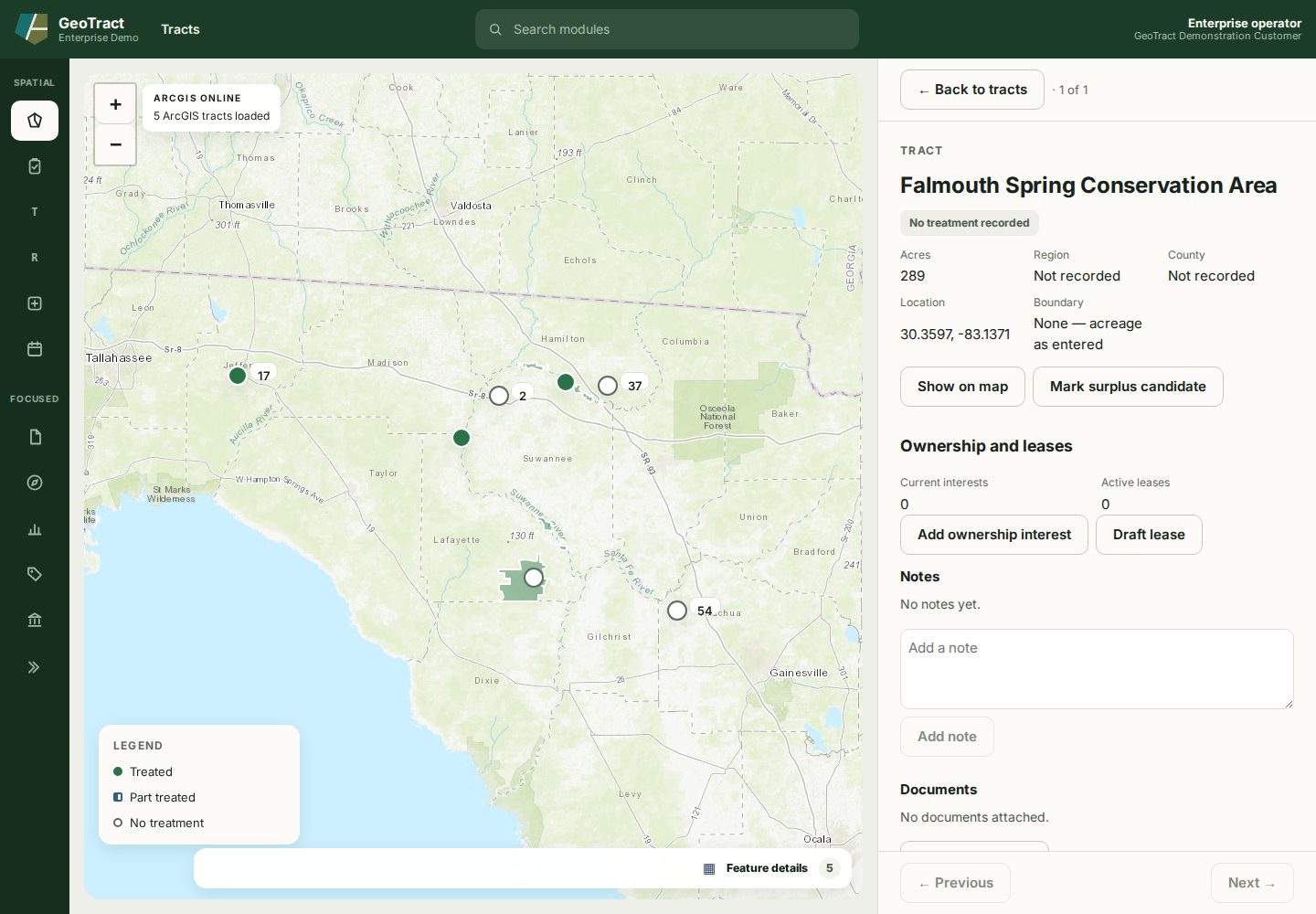
An open record keeps its place in the filtered list and presents facts, ownership and leases, notes, documents, and available actions.
Map-based triage
Use the map to understand location and nearby records. Limit to map view narrows the list to the current extent. Marker clusters summarize overlapping points at the current zoom. A map selection is a navigation aid; confirm the record name, acreage, county, and authoritative boundary before deciding.